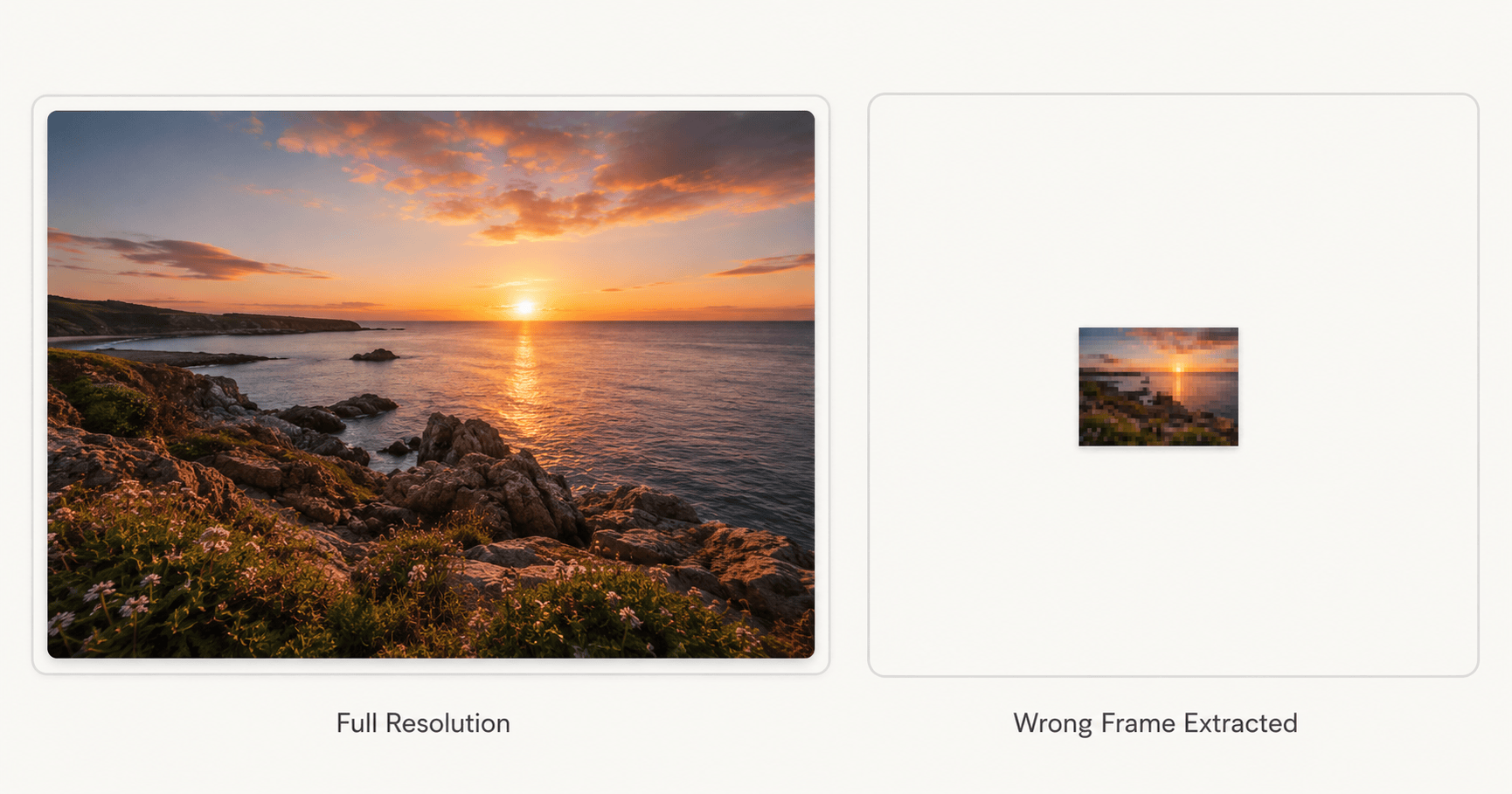
A real estate agent is putting together a listing for a lakefront property. She's shot a dozen photos on her iPhone, the dock at sunset is the best one by far, wide open water, warm light, exactly the shot that gets a listing clicked on. She converts the batch from HEIC to JPG to upload to the MLS. Eleven photos come through perfectly. The dock photo, the one she actually needed, uploads as a small, soft, slightly blurry square, barely bigger than an icon.
Nothing about the shot was damaged. The original on her phone is still full resolution and completely sharp. The conversion handed back the wrong version of it.
Your Phone Keeps More Than One Copy
A HEIC file doesn't always store just one image. Many HEIC photos bundle a small embedded preview frame alongside the actual full-resolution photo, a low-detail thumbnail meant purely for quick use: the kind of tiny image your Photos app can pull up instantly while you're scrolling fast through hundreds of shots, without decoding the full picture every single time.
That thumbnail was never meant to be the final image. It exists so your phone's interface feels fast, not so it can stand in for the photo itself.
Why Some Converters Grab the Wrong One
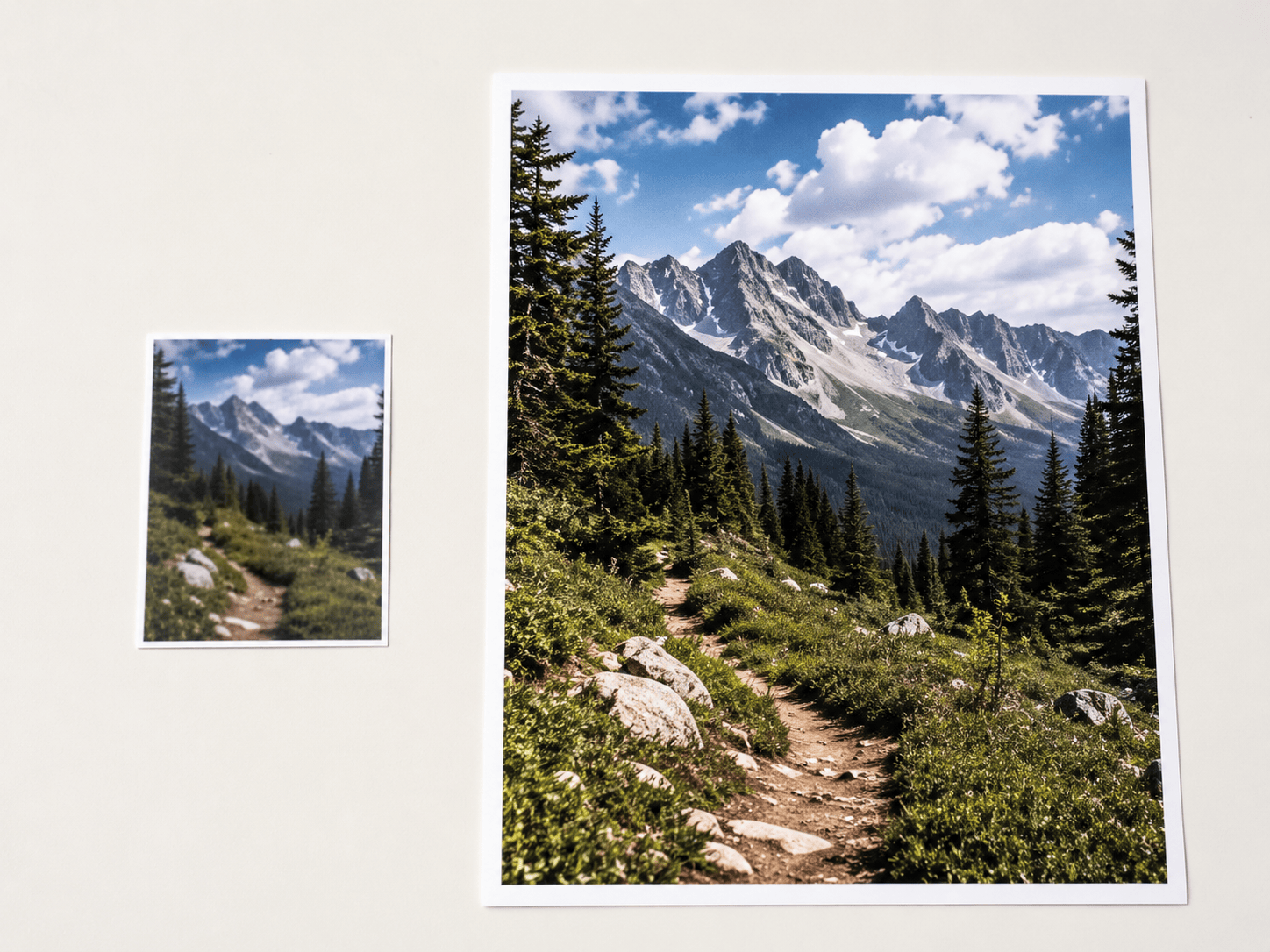
Reading every frame inside a HEIC file and checking which one is actually the full photo takes a bit more work than just reading whichever frame comes first. A converter built to prioritize raw speed, or one that was never tested against files with an embedded thumbnail, can end up pulling that first frame without checking its dimensions against the others in the same file. The output is a technically valid JPG. It opens. It just isn't the photo anyone was looking for.
| Thumbnail Frame Extracted | Full-Resolution Frame Extracted | |
|---|---|---|
| Typical dimensions | A few hundred pixels on the long edge | Several thousand pixels, matching the camera's real output |
| Sharpness | Soft and low-detail, even before any resizing | Matches what the camera actually captured |
| File size | Often just a few kilobytes | Consistent with a normal full photo |
| What it's actually for | Fast internal previews only | Viewing, printing, publishing |
Where This Actually Matters
A blurry thumbnail slipped into a casual photo dump often goes unnoticed, most chat apps and social feeds compress images down anyway, so a small file doesn't always stand out in the moment.
It matters the moment a photo needs to hold up at real size. A listing photo, a printed flyer, a product image people are meant to zoom into, all of these expose a wrong-frame extraction immediately, because there's no hiding a few hundred pixels stretched across a page or a monitor.
Getting the Right Frame Every Time
The fix isn't resizing or sharpening the small file after the fact, there's no missing detail to recover once the full-resolution frame was never extracted in the first place. It's using a converter that checks every frame stored inside the HEIC file and specifically keeps the largest one, rather than whichever one happens to decode first. A properly built HEIC to JPG conversion does exactly that by default, so the file you get back is always the actual photo, not the preview standing in for it.
FAQ
Does this happen to every photo in a batch?No, usually just the ones where the converter's frame-detection logic gets tripped up, which is why it can look random: most photos in a batch convert perfectly while one or two come out wrong.
Why does the phone show the photo correctly if the file has this issue?Your phone's gallery app is built specifically to find and display the full-resolution frame. The problem only shows up in tools that aren't as careful about which frame they extract.
Does this affect HEIC to PNG or PDF conversions too?The same multi-frame issue can affect any conversion target. It shows up most often in quick batch-JPG tools simply because speed tends to be the main thing they're optimized for.
Can I recover the full photo after a bad conversion?Yes, the original HEIC file on your device is untouched by a bad conversion elsewhere. Reconverting it with a tool that reads all the frames correctly gets you the real photo.
A blurry or tiny result doesn't mean the photo was ever bad. It means the conversion reached for the wrong copy of it, the one built for a quick internal preview instead of the one built to actually be seen.